
Best Web Design Tools in 2026: Complete Guide for Designers and Developers
You know that feeling when you have a design in your head, and it looks absolutely perfect? The colors work, the layout flows, every button is exactly where it should be. But then you try to explain it to someone else, and somehow the magic just doesn’t translate.
I’ve been there more times than I care to admit.
The thing about web design is that it’s not just about making things look pretty. It’s about creating experiences that actually work. Experiences that feel natural to users and make sense to developers who have to build them.
Here’s the good news, though. The tools we have in 2026 are better than anything I could have imagined when I started. You can design, prototype, collaborate with teams across the world, and even launch full websites without writing a single line of code.
In this guide, I’m going to walk you through the best web design tools available right now. I’ll tell you what each one is actually good for, where they fall short, and help you figure out which one makes sense for your work.
Quick Answer: Which Tool Should You Pick?
If you’re short on time, here’s the straightforward version:
- For team collaboration: Figma is your best bet
- For interactive prototypes: Adobe XD does this really well
- For Mac users: Sketch is still a solid choice
- For building websites visually, Webflow lets you design and launch without coding
- For design + code together: Adobe Dreamweaver gives you both
- For quick graphics and mockups: Canva gets the job done fast
Now let’s dig into each one so you understand why they made this list.
What Actually Matters in a Web Design Tool?
Before we jump into specific tools, let’s talk about what you should actually care about. Because honestly, the “best” tool is useless if it doesn’t fit how you work.
Here are the questions I ask myself before picking any design software:
- Do I need to work with other designers in real time?
- How important is it to test interactions before building?
- Will developers take over after I’m done designing?
- Do I want to handle both design and development in one place?
- What can I actually afford right now?
Being honest about these questions will save you a lot of time and money. Trust me on this.
The Best Web Design Tools in 2026
I’ve spent countless hours in each of these tools. I’ve also talked to designers who use them every single day. Here’s what I’ve learned.
1. Figma – The Collaboration King
Figma completely changed how design teams work. The reason is simple: it runs in your browser and lets multiple people edit the same file at the same time.
I remember working on a project with a designer in London while I was in California. We were both moving things around, leaving comments, watching each other’s cursors dance across the screen. It honestly felt like we were sitting next to each other.
The component system is another thing Figma gets right. You can create a button once, turn it into a component, and reuse it everywhere. Need to change that button later? Update it once, and it changes everywhere. That’s hours of work saved.
What I love: Real-time collaboration that actually works. A free plan that’s genuinely useful. Components that make design systems manageable.
The catch: It can feel overwhelming when you first open it. Give yourself a week to get comfortable.
2. Adobe XD – Built for Prototypes
Adobe XD focuses on one thing and does it really well: creating interactive prototypes that feel like real websites.
The first time I built a prototype in XD and watched someone click through it, something clicked for me. You can add transitions, micro-interactions, and even voice commands. It’s the closest you can get to showing someone a live site without actually building it.
If you’re already using other Adobe tools, XD fits right in. Need to grab an asset from Photoshop or Illustrator? It’s seamless.
What I love: Prototyping that actually feels real. Smooth animations. Great Adobe integration.
The catch: Team collaboration isn’t as smooth as Figma. And you’re locked into a subscription.
3. Sketch – The Mac Favorite
Sketch has been around for years, and there’s a reason it’s still going strong. Before Figma came along, this was what everyone used.
The plugin ecosystem is where Sketch really shines. Need to generate placeholder text? There’s a plugin. Need to export assets in twenty different sizes? There’s a plugin for that too. The community has built thousands of them.
The symbol system (their version of components) is rock solid. Once you set up your design system, you can push out screens faster than you’d believe.
What I love: Endless plugins. Great component system. Feels natural on Mac.
The catch: Mac only. If you’re on Windows, this isn’t an option. Collaboration still lags behind Figma.
4. Webflow – Design and Build Together
Webflow is something special. It’s not just a design tool—it’s a website builder that creates real, production-ready sites without code.
I built my first portfolio site in Webflow years ago. I still remember hitting publish and seeing my design live on the actual internet. No developers. No handoff. No waiting. Just my design, out in the world.
The CMS features are surprisingly powerful, too. You can design templates and let clients update content themselves without breaking anything.
What I love: Design and development in one tool. Total creative control. No coding required.
The catch: There’s definitely a learning curve. Don’t expect to master it in a weekend.
5. Adobe Dreamweaver – The Old Reliable
Dreamweaver has been around forever. It’s not as popular as it once was, but for a certain kind of designer, it still makes sense.
The split view shows your visual design next to the code. Change something in the design, and the code updates. Tweak the code and the design changes. It’s actually a great way to learn HTML and CSS.
The built-in FTP means you can edit files directly on your server without messing with separate upload tools. For quick fixes, that’s incredibly handy.
What I love: Visual and code together. Built-in FTP. Good for learning how websites work under the hood.
The catch: It feels dated. Modern design tools have moved past this approach.
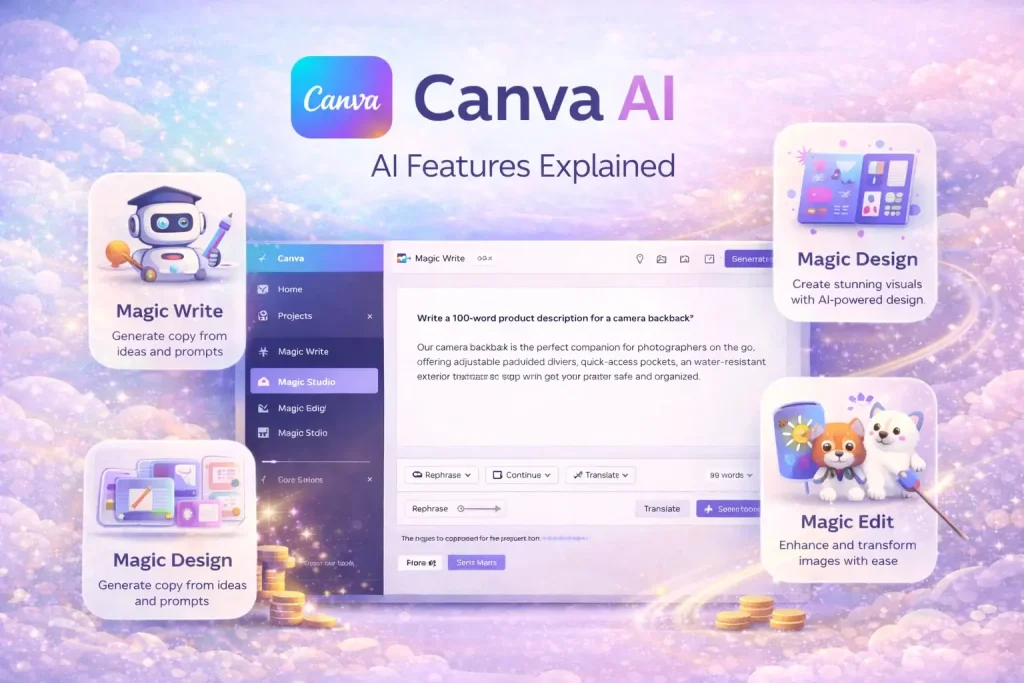
6. Canva – Quick and Beginner Friendly
Canva isn’t really a web design tool in the traditional sense. But for quick mockups, landing page concepts, and social graphics? It’s perfect.
A friend of mine started a small online shop during the pandemic. She used Canva to design her entire website. No coding. No hiring anyone. Just templates and drag and drop. Her site honestly looks better than some that cost thousands.
What I love: Insanely fast. Zero learning curve. Great templates.
The catch: Your designs might look generic if you don’t customize enough. Limited control for complex projects.
Quick Comparison
| Tool | Best For | Price | Learning Curve |
|---|---|---|---|
| Figma | Team collaboration | Free / Paid | Easy to start |
| Adobe XD | Interactive prototypes | Subscription | Moderate |
| Sketch | Mac design work | Paid | Moderate |
| Webflow | Visual site building | Free trial / Paid | Steeper |
| Dreamweaver | Design + coding | Subscription | Steeper |
| Canva | Quick visuals | Free / Paid | Very easy |
What I Wish Someone Had Told Me
When I first started designing websites, I made every mistake you can imagine. I used Photoshop for layouts (terrible idea). I completely ignored mobile users. I handed off files that developers couldn’t use.
Here’s what I learned the hard way.
Start with wireframes. Before you worry about colors and fonts, figure out where everything goes. Sketch on paper. Use a simple tool. Get the structure right first.
Build a design system early. Those buttons? Make them reusable. That color palette? Save it. Future you will be incredibly grateful.
Test before you build. Create quick prototypes and watch people use them. You’ll catch confusing stuff before it gets baked into the final design.
Check every screen size. What looks perfect on your monitor might be unreadable on a phone. Test everything.
Make handoff easy. Use tools that generate specs automatically. Developers shouldn’t have to guess your font sizes.
A developer once told me something that stuck: “The best designs are the ones I can build without sending a single Slack message.” That’s still the best advice I’ve ever gotten.
Questions People Actually Ask Me
What’s the best web design tool for beginners?
Canva is the easiest place to start. You’ll actually make stuff instead of getting stuck in tutorials. Make a few projects there, then see what you’re missing. That’ll tell you what to learn next.
Do I need to know how to code to use these tools?
For Figma, XD, and Sketch? No coding needed at all. For Webflow, you’ll need to understand design concepts, but you won’t write code. Dreamweaver is the only one where coding knowledge helps.
Can I use free tools for real client work?
Absolutely. Figma’s free plan is incredibly powerful. Canva’s free version does plenty. Start with free tools, learn the ropes, and upgrade when you actually need advanced features.
What’s the difference between designing and prototyping?
Designing is creating how things look. Prototyping is testing how things work. You need both. XD is great for prototypes. Figma handles both well. Webflow lets you skip straight to building.
How do I hand off designs to developers?
Modern tools make this easy. Figma and XD generate specs automatically. Developers can click any element and see exact measurements, colors, and fonts. Some tools even export CSS. No more guessing.
Should I learn multiple tools or stick with one?
Master one first. Get genuinely good at it. Then add another if you need it. Trying to learn everything at once just leads to frustration.
Is Webflow hard to learn?
It takes time. Plan on a few weeks of regular practice before you feel comfortable. But once it clicks, it’s incredibly empowering. You can build anything you can imagine.
What do professional designers actually use?
Figma is probably the most common right now, especially for teams. Adobe XD is popular too. Sketch is still around, but mostly on Mac. Webflow is growing fast among designers who want to build.
Can I design websites on an iPad?
Some tools have iPad apps, but honestly, most designers still prefer computers for serious web design. iPads are great for sketching ideas, but for detailed work, you’ll want a laptop or desktop.
How do I know which tool is right for me?
Try them. Most have free trials or free plans. Spend an hour in each. See which one feels natural. Your gut will tell you.
Where Things Are Headed
I’ve been watching this space for years, and the pace of change is wild.
AI is becoming a real helper. Tools can now suggest layouts, generate content, and even write code. You describe what you want, and the tool helps you create it.
Collaboration is becoming standard. Working alone in a file feels old now. Real-time editing, comments, version history—all just expected.
The line between design and development is disappearing. Webflow lets designers build real sites. Developers are getting better design tools. The gap keeps shrinking.
I tried a tool recently that generated a full homepage from a few sentences I typed. It wasn’t perfect, but it was a starting point. That would have taken me hours before.
Final Thoughts
Here’s the truth after all these years.
If you’re working with a team, especially a remote one, start with Figma. The collaboration alone makes it worth it.
If you need to test interactions and show clients how things will work, Adobe XD is fantastic.
If you’re on a Mac and prefer native apps, Sketch is still solid.
If you want to design and build without waiting on developers, Webflow is magic.
If you’re learning how code and design fit together, Dreamweaver can help you understand.
If you just need quick visuals and don’t want to overthink it, Canva will get you there fast.
The perfect tool doesn’t exist. But the right tool for what you need right now? That does exist.
Pick one. Start making things. You’ll figure out the rest as you go.
Because at the end of the day, the tool is just a tool. You’re the one doing the real work.