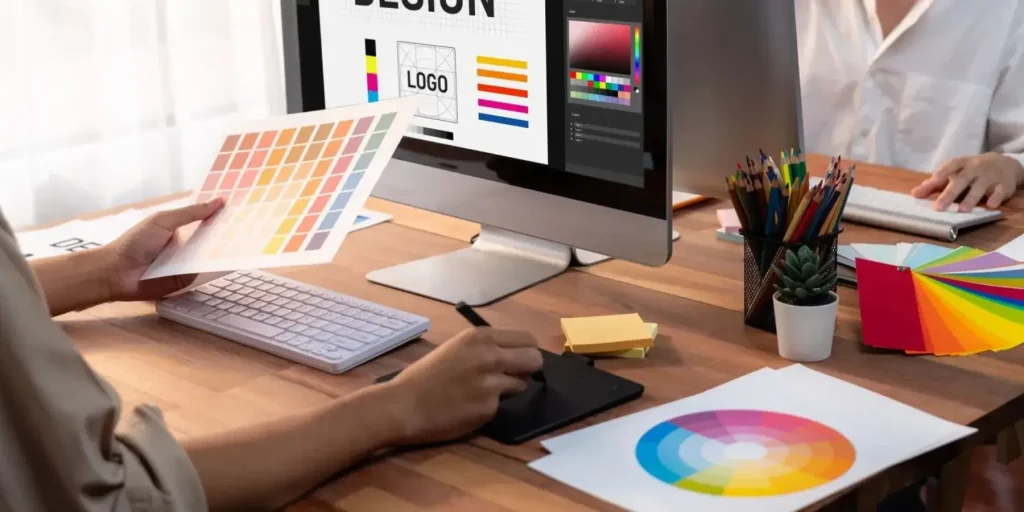
Best Graphic Design Tools 2026: Complete Guide for Beginners and Professionals
Let me guess. You’re staring at your screen, trying to figure out which design tool to use. Should you learn Photoshop? Is Canva good enough? What about Figma? Everyone’s recommending something different, and honestly? It’s overwhelming.
I’ve been there. When I first started designing, I downloaded every tool I could find. Spent hours watching tutorials, getting confused, and wondering why my stuff didn’t look like the pros.
Here’s what I learned after years of trial and error: there’s no single “best” tool. There’s only the right tool for what you actually need to make.
In this guide, I’m going to walk you through the top graphic design tools in 2026-what they’re actually good for, who should use them, and how to pick the right one without wasting time or money.
Quick Answer: Which Tool Should You Pick?
If you’re in a hurry, here’s the short version:
- For social media and quick designs: Canva
- For logos and vector graphics: Adobe Illustrator or Affinity Designer
- For photo editing: Adobe Photoshop
- For UI design and collaboration: Figma
- For iPad illustration: Procreate
Now let’s dive into the details so you understand why.
What to Look For in a Graphic Design Tool
Before we get into specific tools, let’s talk about what actually matters. Because honestly, the “best” tool is useless if it doesn’t fit how you work.
Ask yourself these questions:
- What kind of designs do you make most often? Logos? Social posts? Photos?
- How much time are you willing to invest in learning?
- Do you need to collaborate with others?
- What’s your budget?
- Do you prefer a one-time payment or a subscription?
Keep these in mind as we go through the options.
The Best Graphic Design Tools in 2026
I’ve spent countless hours in each of these tools. Here’s my honest take on what they’re actually good for.
1. Adobe Illustrator – The Industry Standard for Vector Design
Illustrator has been around forever, and there’s a reason it’s still the standard. The pen tool alone is worth learning—once you get it, you can create anything.
The learning curve is real, though. The first time I opened Illustrator, I closed it after five minutes. Felt like I was piloting a spaceship. But stick with it, and it becomes second nature.
What I love most is the infinite scalability. That logo you designed? It’ll look crisp on a business card AND a billboard. No pixelation, no quality loss.
The catch? Subscription pricing adds up over time. And it’s definitely overkill if you only need simple designs for social media.
2. Adobe Photoshop – The Photo Editing King
Photoshop is literally a verb now. People say “just Photoshop it” the way they say “Google it.” That tells you something about its dominance.
It’s incredibly powerful for manipulating images, removing backgrounds, adding effects, and creating complex composites. But like Illustrator, it has a steep learning curve that can intimidate beginners.
What I love is the layer system. Once you understand layers, everything clicks. You can edit non-destructively, try things without fear, and always go back to earlier versions.
The catch is that it’s a subscription, and honestly, most people only use about 20% of its features. Do you really need everything Photoshop offers?
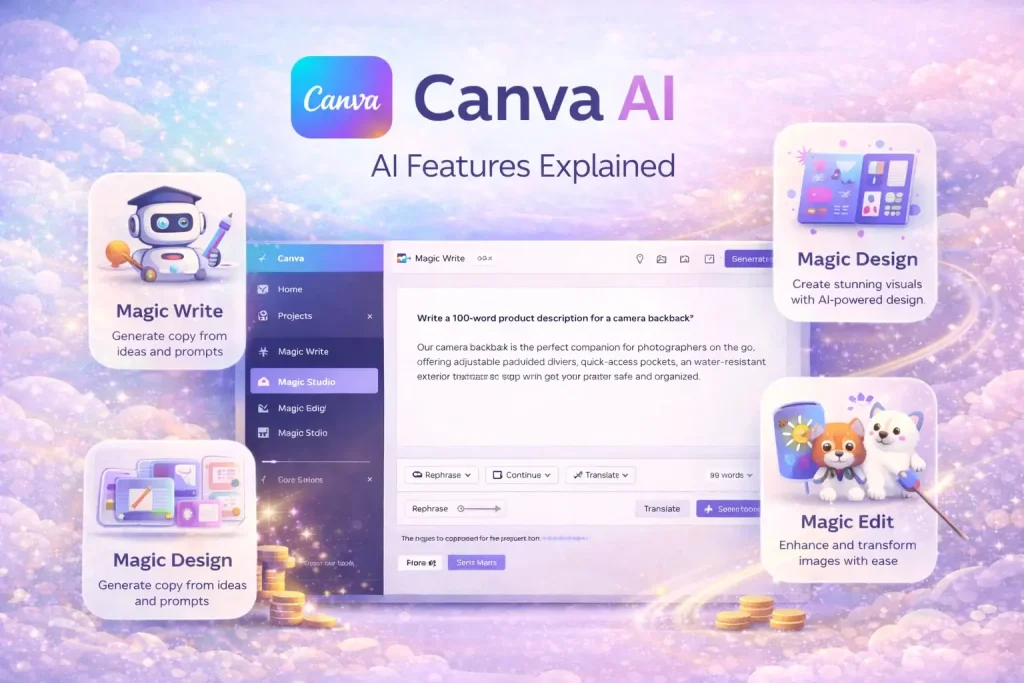
3. Canva – The Beginner’s Best Friend
Canva changed everything. Before Canva, if you needed a graphic, you either hired a designer or struggled with complex software. Now? Anyone can create something decent in minutes.
My aunt runs a small bakery and makes all her own social posts with Canva. She’s never taken a design class in her life. That’s the magic of this tool.
What I love most is the templates. Thousands of them, mostly well-designed. You can start with something that already looks good and tweak it to match your brand.
The catch is that designs can look generic if you don’t customize enough. And you’ll eventually hit limits if you need advanced features like precise vector control.
4. Figma – The Collaboration Powerhouse
Figma took over the UI design world for one simple reason: it works in the browser, and multiple people can edit at the same time. It’s like Google Docs for design.
Even if you’re not doing UI work, Figma’s vector tools are surprisingly good. I know illustrators who use Figma instead of Illustrator because it’s free and they prefer the workflow.
What I love is real-time collaboration. Being able to watch someone else edit your file, leave comments, and see changes instantly—it’s how design should work.
The catch is that it’s designed for screen-based work, not print. And some advanced illustration features are missing compared to dedicated vector tools.
5. Affinity Designer – The Smart Alternative
Affinity Designer is what you get when someone says, “What if we made Illustrator but with a one-time payment?” It’s fast, powerful, and surprisingly affordable.
I switched to Affinity for a while when I got tired of Adobe’s subscription model. It handles both vector and raster work, which is rare and valuable. You can design a logo and then add texture without switching apps.
What I love is the performance. It’s buttery smooth even on older computers, which can’t always be said for Adobe products.
The catch is that there are fewer tutorials and community resources than Adobe. And some clients still expect native Illustrator files, so you might need to export carefully.
6. Procreate – The iPad Artist’s Dream
Procreate is what happens when software is designed specifically for hardware. It takes full advantage of the iPad, the Apple Pencil, and the touch interface. It feels like drawing on paper, but with infinite undo.
I bought an iPad specifically for Procreate, and it changed how I illustrate. The brush engine is incredible, the interface disappears when you’re working, and the results look organic and hand-made.
What I love is the time-lapse replay. Procreate records your entire drawing process. Clients love watching their logo come to life from first sketch to final product.
The catch is that it’s iPad only. And it’s specifically for illustration, not for layout work or photo editing.
Quick Comparison at a Glance
| Tool | Best For | Core Features | Price | Learning Curve |
|---|---|---|---|---|
| Adobe Illustrator | Vector, logos | Pen tool, typography, infinite scaling | Subscription | Steep |
| Adobe Photoshop | Photo editing | Layers, masks, retouching | Subscription | Steep |
| Canva | Social graphics | Templates, drag-drop, stock assets | Free / Paid | Gentle |
| Figma | UI, collaboration | Real-time editing, vectors, prototyping | Free / Paid | Moderate |
| Affinity Designer | Illustration mix | Vector + raster, one-time purchase | One-time | Moderate |
| Procreate | iPad illustration | Custom brushes, hand-drawn feel | One-time | Gentle |
How I Learned to Stop Worrying and Love Design Tools
I remember spending three months trying to master Photoshop. Watched dozens of tutorials, followed along, felt like I was making progress. Then I tried to design something on my own and… nothing. Total blank.
Turns out, I was learning the tool, not learning design. Big difference.
Here’s what actually helped me:
I started with one tool. Just Canva. Made stuff every day. Got comfortable with the basics of layout and color without fighting complex software.
I copied work I admired. Not to steal, but to understand. Why did that poster work? How did they choose those colors? Recreating it taught me more than tutorials ever did.
I gradually leveled up. When I hit Canva’s limits, I moved to Figma. When I needed more illustration power, I learned Illustrator. Step by step, not all at once.
You don’t need to learn everything. You just need to learn enough for what you’re making right now.
Tips to Use These Tools Effectively
After years of trial and error, here’s what actually saves me time and frustration:
Start with inspiration, not a blank page. Before opening any tool, spend 10 minutes on Pinterest or Behance. Save stuff you like. Figure out what draws you to them. Then start designing with direction.
Use templates as starting points, not crutches. Canva templates are great. But if you use them without changes, your stuff will look like everyone else’s. Tweak colors, swap fonts, make them yours.
Work in vector for anything that might need scaling. That logo you’re making? Someone might want it on a billboard someday. Vector scales infinitely. Pixels don’t.
Organize your assets. Create folders for fonts, icons, images, and inspiration. Future you will be grateful when you’re not hunting for that one file at midnight.
Export for where it’s going. Web? PNG or SVG. Print? PDF or high-res JPG. Social? Check each platform’s specs. Instagram eats low-res images for breakfast.
One designer told me something that stuck: “The tool doesn’t make the design. You do. The tool just removes obstacles between your brain and the screen.”
Questions I Get Asked All The Time
Which tool is best for a complete beginner?
Canva, without question. You’ll actually make stuff instead of getting stuck in tutorials. Make 20 designs in Canva, then see what you’re missing. That’ll tell you what to learn next.
Do I need both vector and raster tools?
If you do logos or illustrations, you need vectors. If you edit photos, you need a raster. Some people need both. Some don’t. Think about what you actually make day to day.
Are expensive tools worth it?
For professionals who use them daily, yes. They pay for themselves. For someone making occasional social graphics, no. Canva or Figma will do everything you need.
Can design tools replace human designers?
No. They make designers faster and help non-designers create decent work. But taste, creativity, and strategic thinking? Still human skills. The tool is just a pencil. The artist holds it.
How many tools should I learn?
Master one first. Get genuinely good at it. Then add another if you need it. Jack of all trades, master of none doesn’t work well in design.
What’s the best free design tool?
Figma. The free tier is incredibly generous. Canva’s free version is also solid. Start with either and see which fits your workflow better.
Where Design Tools Are Headed
I’ve been watching this space evolve, and the next few years are going to be wild.
AI is becoming the co-pilot, not just a feature. Tools are moving from “here’s a button that does one thing” to “tell me what you want and I’ll help you make it.” You’ll describe an idea, and the tool will generate options.
Real-time collaboration will be standard. Figma showed us how design should work. Other tools are catching up. Soon, working alone in a file will feel as outdated as using floppy disks.
Web-based tools are winning. Installing software feels old-fashioned. More tools are moving to browsers. Open a link, start designing, and share it instantly.
One industry veteran told me, “In five years, we’ll wonder how we ever designed without AI assistants. It’s going to change everything.”
Final Thoughts: How to Pick Your Tool
Here’s the truth after all these years of designing and testing tools.
If you’re just starting, pick Canva. Make stuff. Have fun. Don’t overthink it.
If you’re doing social media, Canva, or Figma. Both are great. Figma, if you want more control and collaboration.
If you’re designing logos and brands, learn Illustrator. It’s the standard for a reason. Affinity Designer is a solid alternative if you hate subscriptions.
If you’re editing photos, use Photoshop. Nothing else comes close for serious work.
If you’re drawing on an iPad, use Procreate. It’s not even a competition.
If you’re designing websites or apps, Figma. It’s what everyone uses.
The perfect tool doesn’t exist. But the right tool for what you need right now? That does exist. Pick one, start making stuff, and trust that you’ll figure out the rest along the way.
Because at the end of the day, the tool doesn’t create the design. You do.
Last updated: March 2026